
Crew Data
|
|
| Callender of Business. |
Apple Watch |
||
| Top page | Next page | |
| -------------------------------------------------------------------------- | ||
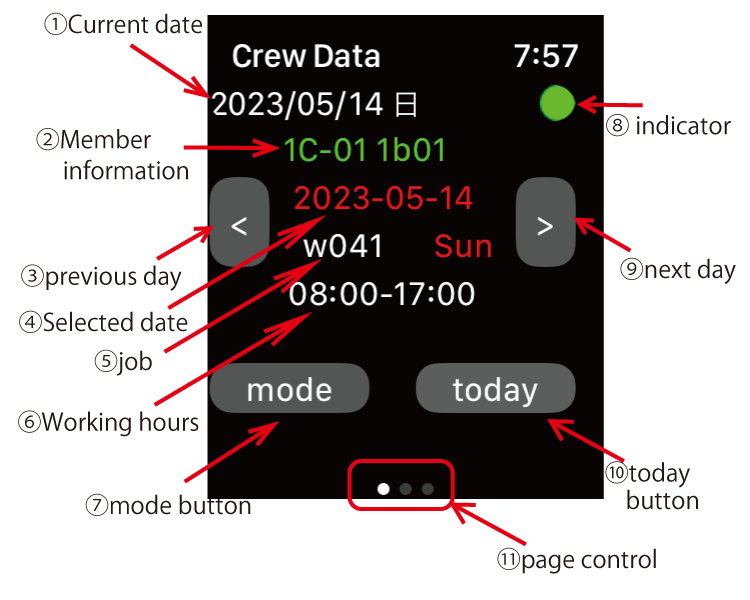
PAGE 1 job display Added a function to display iPhone Crew Data data on the screen of the paired Apple Watch. |
||
Mode to pair with iPhone. 01 ⑦When the mode button of is "mode", it operates in sync with the iPhone. Screen description ①Current date ②Member information ③previous day<day button> ④Selected date This is the date selected on the iPhone. It has nothing to do with the year and month of the monthly display. ⑤job ⑥Working hours If the working hours are divided into the first half and the second half, it will be displayed in two rows. ⑦mode button When the mode button of is "mode", it operates in Sync with the iPhone. If you press this button to switch to Watch mode, there is a mode that allows you to transfer data for 50 days before and after the selected date on your iPhone to your Apple Watch and view it within that period without connecting with your iPhone. ⑧indicator Displays the communication status with the iPhone. Gray is doing nothing. Orange is the state of calling the iPhone from the Watch. Green indicates that data has arrived from the iPhone. Cyan is the state in which data for Watch mode has been received. If there is no change in the orange color, it means that there is no iPhone nearby or the main application is not running. ⑨next day<day button> ⑩today button Make today's date the selected date. ⑪page control The Watch app consists of 3 pages. The left side is the job display screen. The middle is the group and member change screen. On the right side is the screen for changing the Group A/Group A, Area 1/Area 2. Swipe to change pages. |
||
| -------------------------------------------------------------------------- | ||
| Top page | Next page | |
mail to morisita@ic-net.or.jp