
Crew Data EDIT
|
|
| Callender of Business. |
initial folder edit file |
||
| Previous | Top Page | Next page |
| -------------------------------------------------------------------------- | ||
Edit work By editing 'kyoto.csv' and 'osaka.csv', you can edit the business content. The work of area 1 is 'kyoto.csv'. Area 2 will be the contents of 'osaka.csv'. |
||
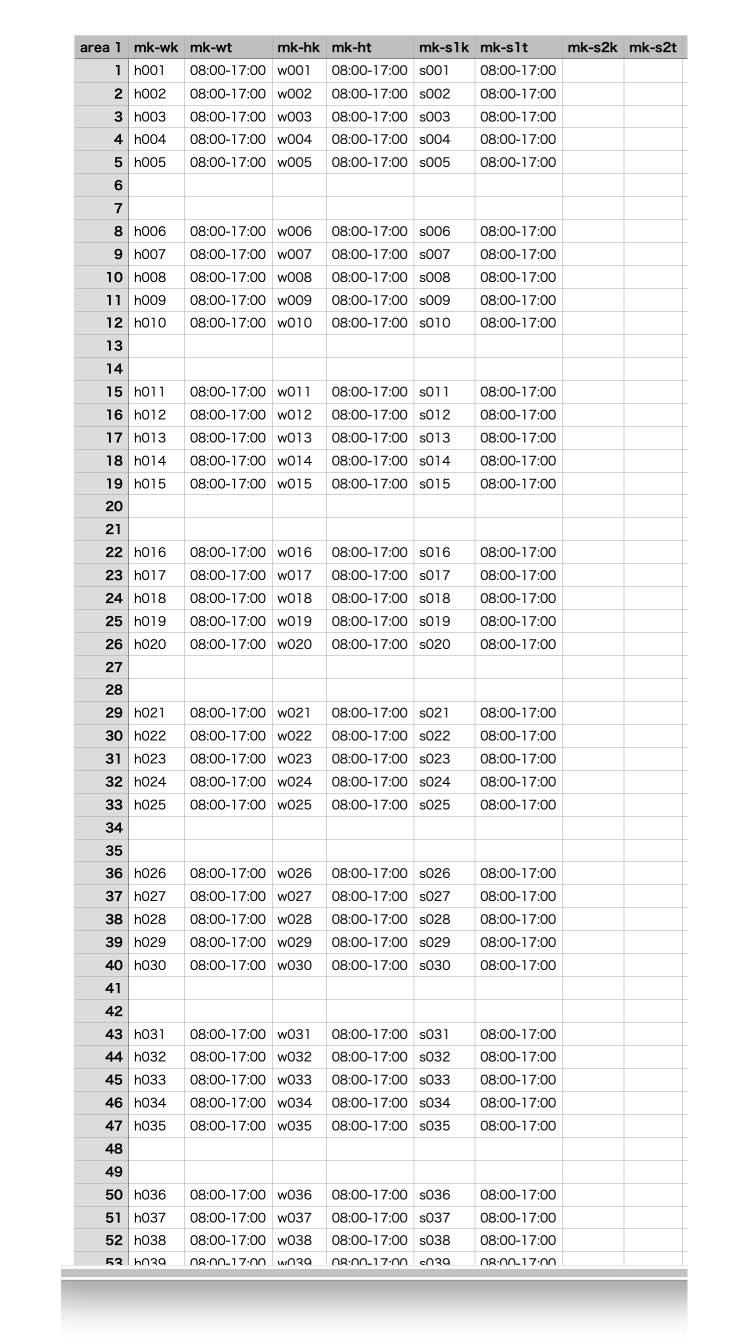
Edit work 01 The 'kyoto.csv' file is opened with an app called Numbers. After editing, export in CSV format. You can do the same with Excel. The above sheet shows the work of Area 1, Team A. The 'mk-wk' column is the name of the work on weekdays. In order, 'mk-wt' is weekday working hours, 'mk-hk' is holiday work, 'mk-ht' is holiday working hours, 'mk-s1k' is special day work, and 'mk-s1t' is special day working hours. |
||
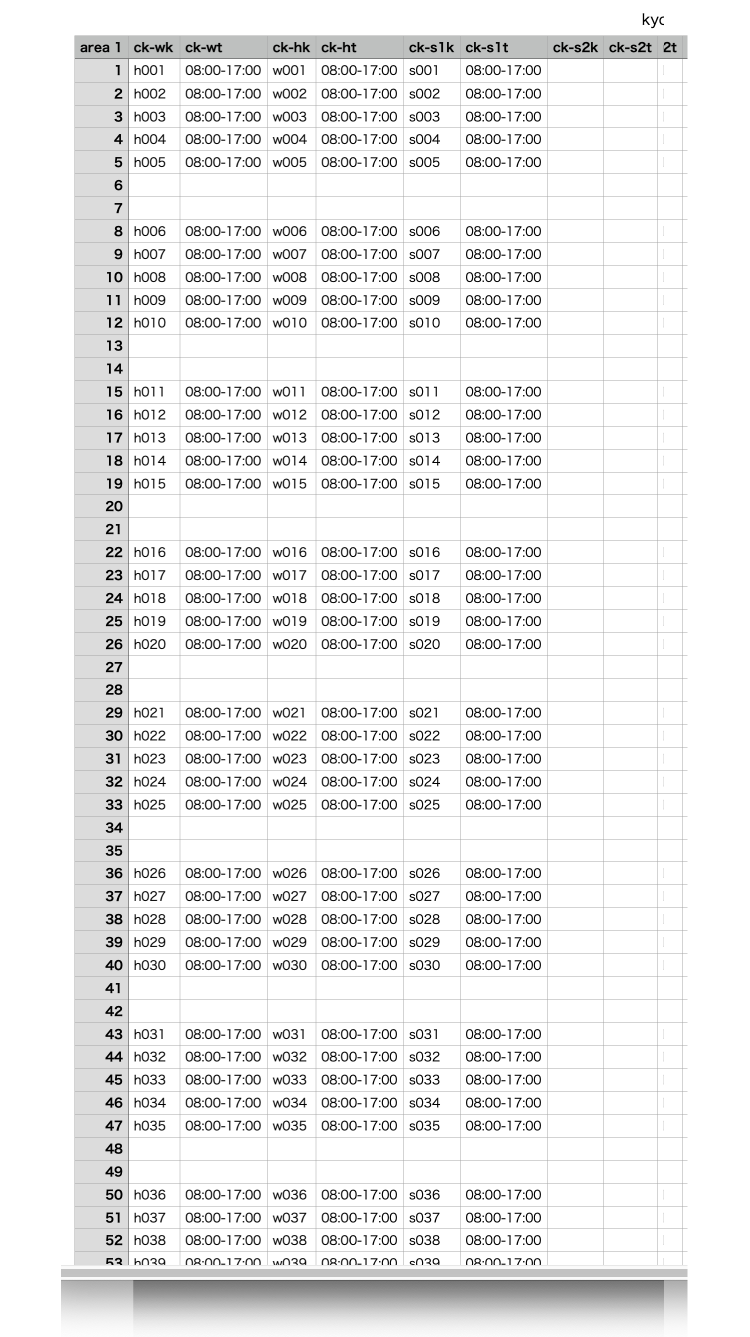
Edit work 02 If you slide the sheet sideways, it will be the item of the B team. The 'ck-wk' column will be the name of the weekday work. In order, 'ck-wt' is weekday working hours, 'ck-hk' is holiday work, 'ck-ht' is holiday working hours, 'ck-s1k' is special day work, and 'ck-s1t' is special day working hours. The editing method is the same as A Team. We omit the explanation. The right side after this is a spare for 8G and 9G. Reserves are not available in this version of the app. |
||
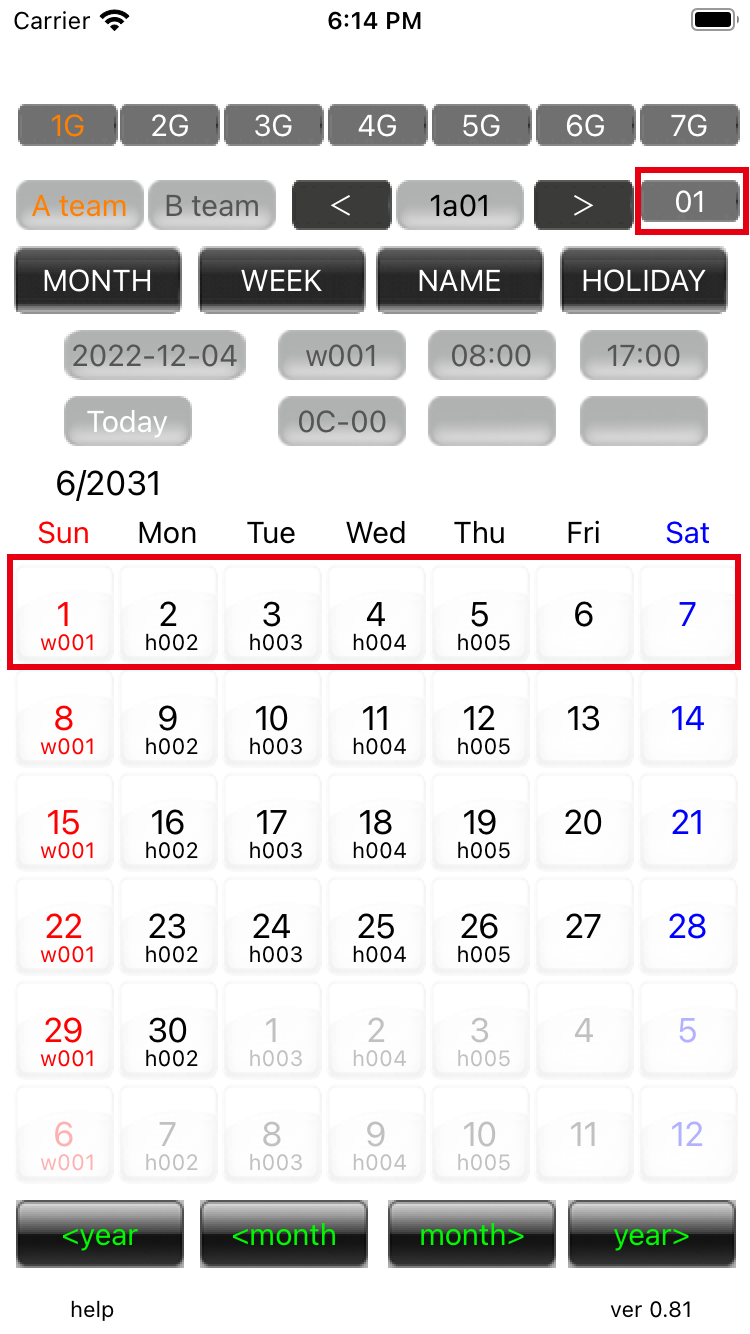
Edit work 03 Display the monthly calendar of 'A team'. This app was created to display weekly work. The red box '1' in the upper right means that the work is done in units of one week. Work is circulated with a team of seven people. There are 7 duties (including holidays) and 1 person in each group. Below the date on the calendar shows the work content. The contents of rows 1-7 of the kyoto.csv sheet are reflected. Since the 1st is a holiday, it will be the contents of the 'mk-hk' column. |
||
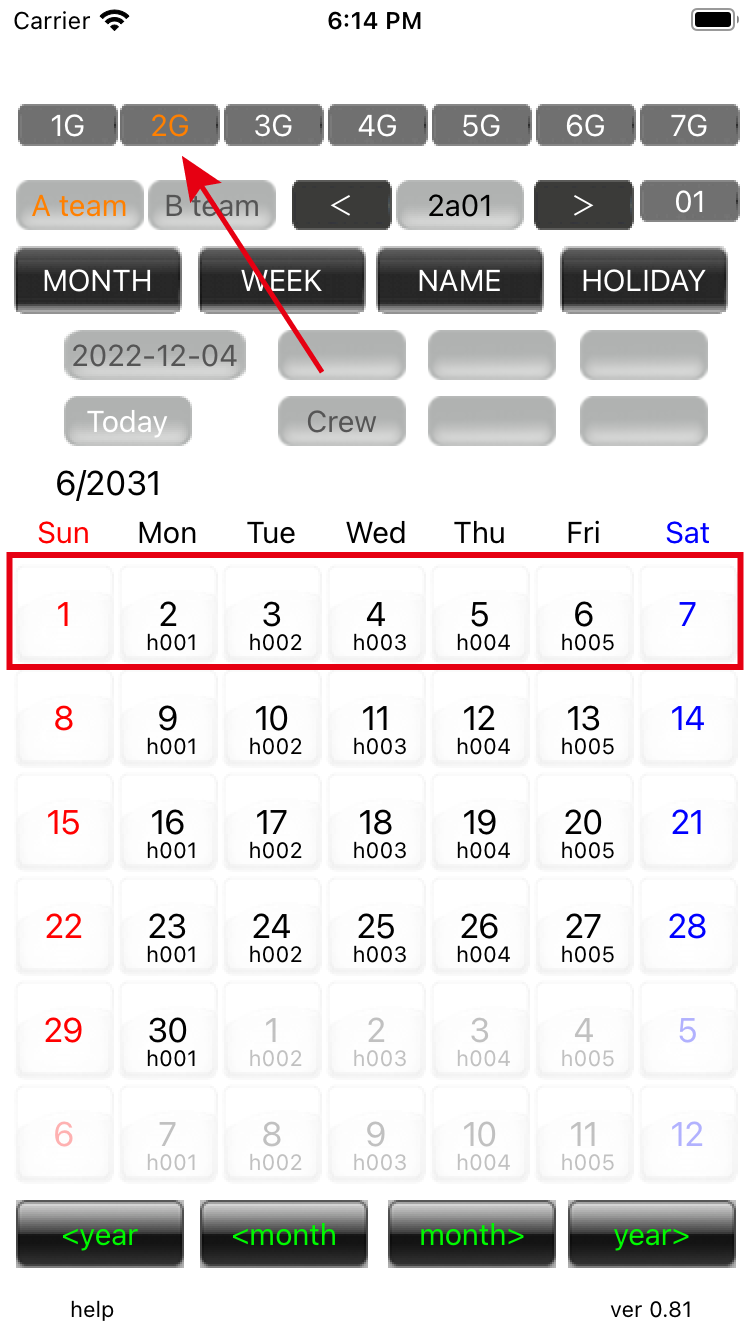
Edit work 04 Looking at the 2 groups, the contents of rows 7 and 1-6 of the kyoto.csv sheet are reflected. It will be placed out of the 1 group. All 7 groups will be shifted. The initialization file allocates different business contents to every line. As a result, each day is a different task, and the same task is not performed between groups. However, since the B team allocates the same work contents as the A team, the same group of the A team and the B team has the same work in the initial setting file. By editing kyoto.csv, it is possible to have the same work between groups or different work between teams. |
||
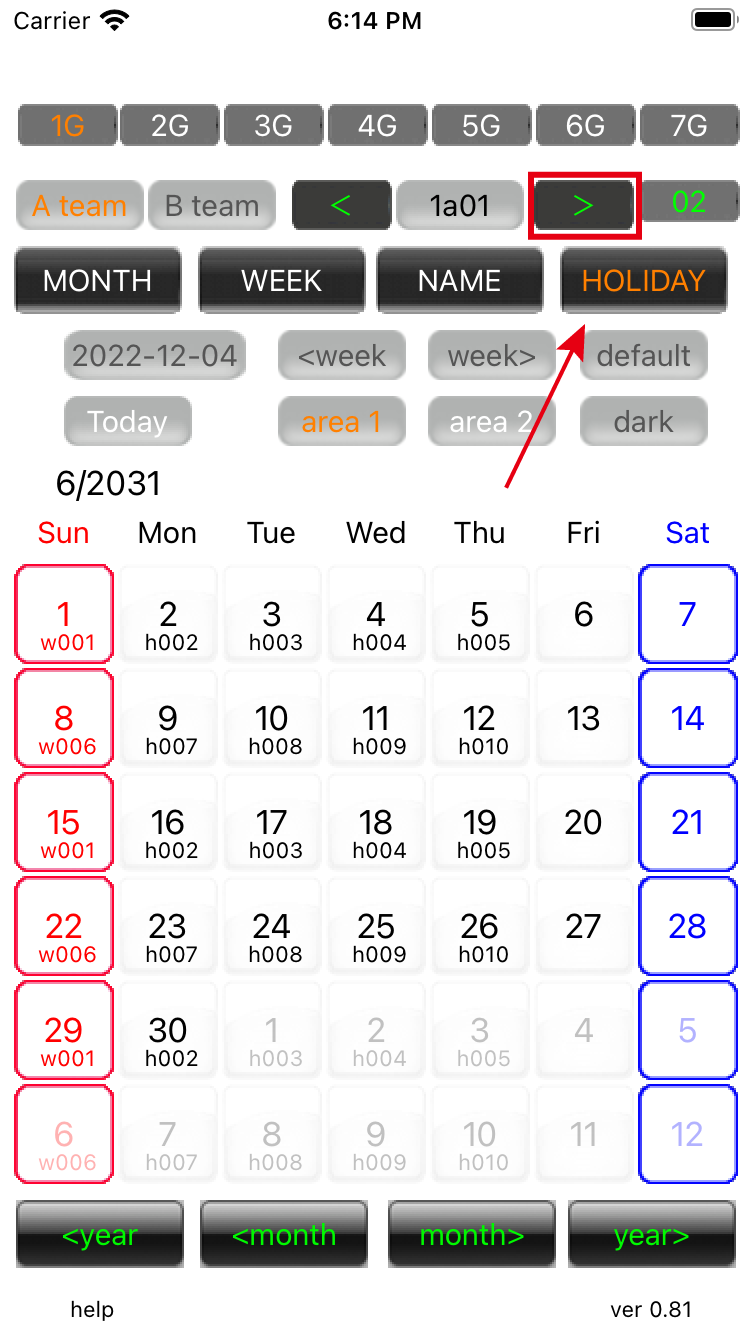
Edit work 05 You can change the number of cycles by entering 'change holiday' mode and pressing the green arrow button. Let's set it to 2. |
||
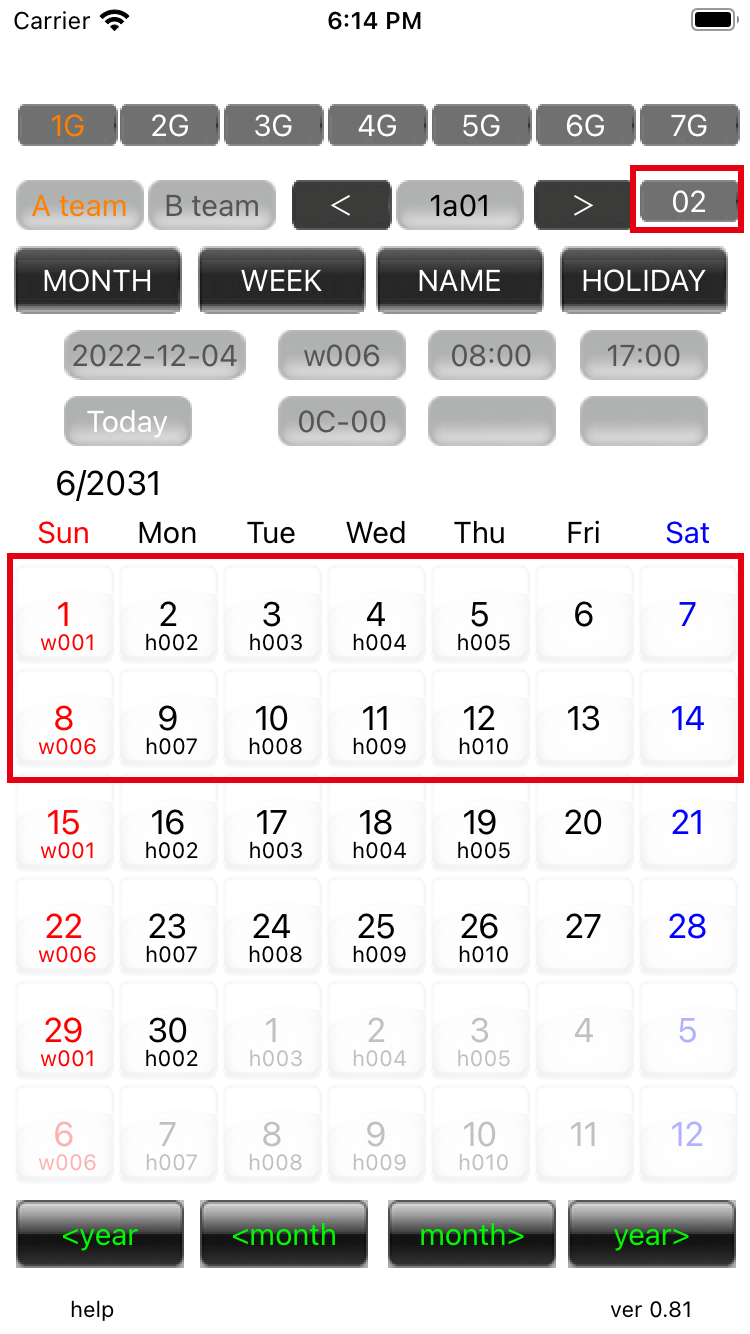
Edit work 06 If the upper right number (the number of cycles) is 2, there will be 14 people per team, 14 tasks, and 2 people per group. The upper right number can be increased up to 30. From the 1st to the 14th, the contents of rows 1-14 of the kyoto.csv sheet are reflected. The 15th returns to the 1st line of the line and continues from there to the 14th line. If you set the number of cycles to 3, rows 1-21 of the sheet will be reflected and will return to row 1 on the 22nd. This number can be increased up to 30. |
||
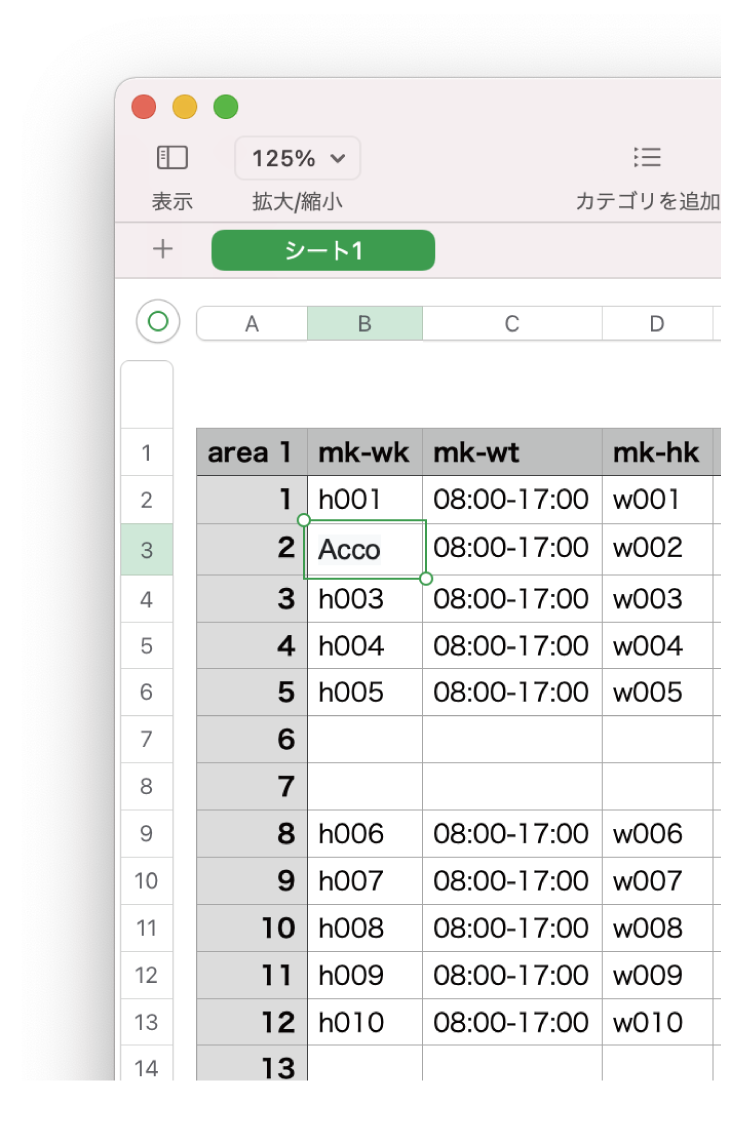
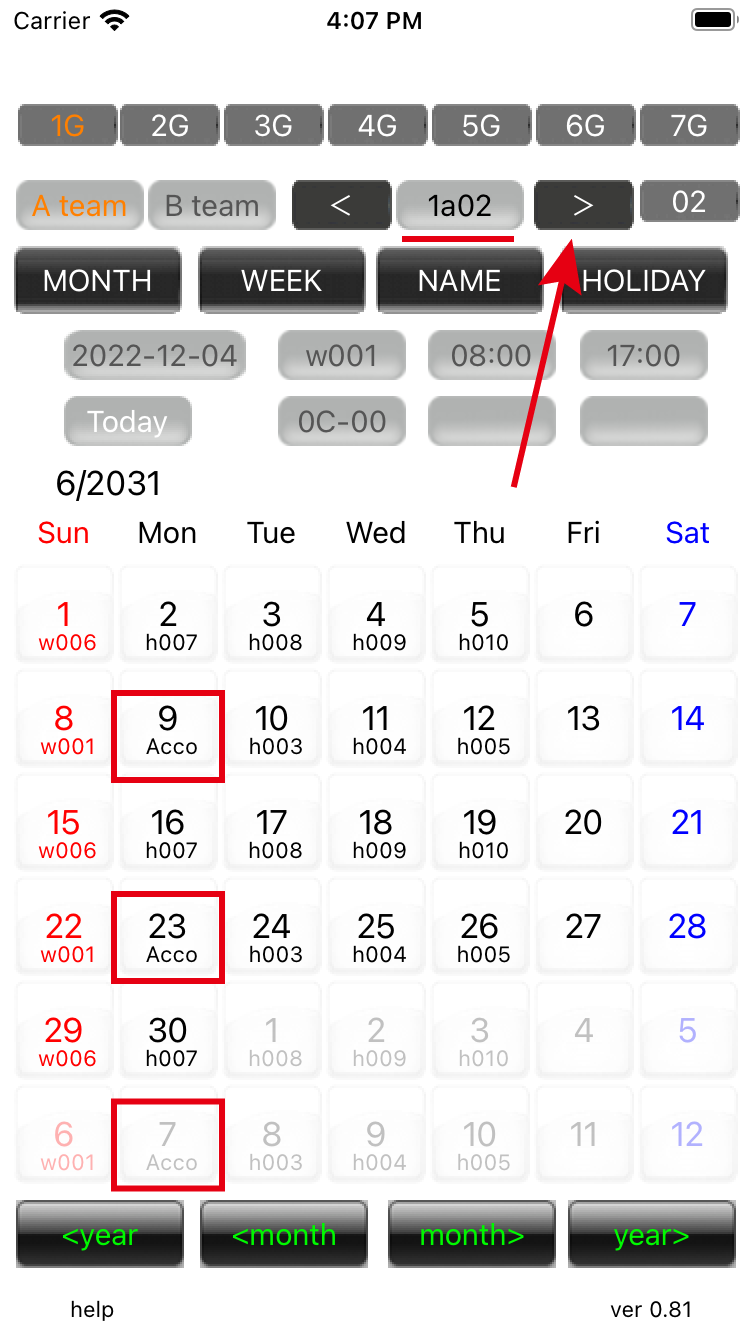
Edit work 07 Open the kyoto.csv file with Numbers, modify the second line of Team A to 'Acco', and export it in CSV format. Replace kyoto.csv in the initial folder and restart Crew data. |
||
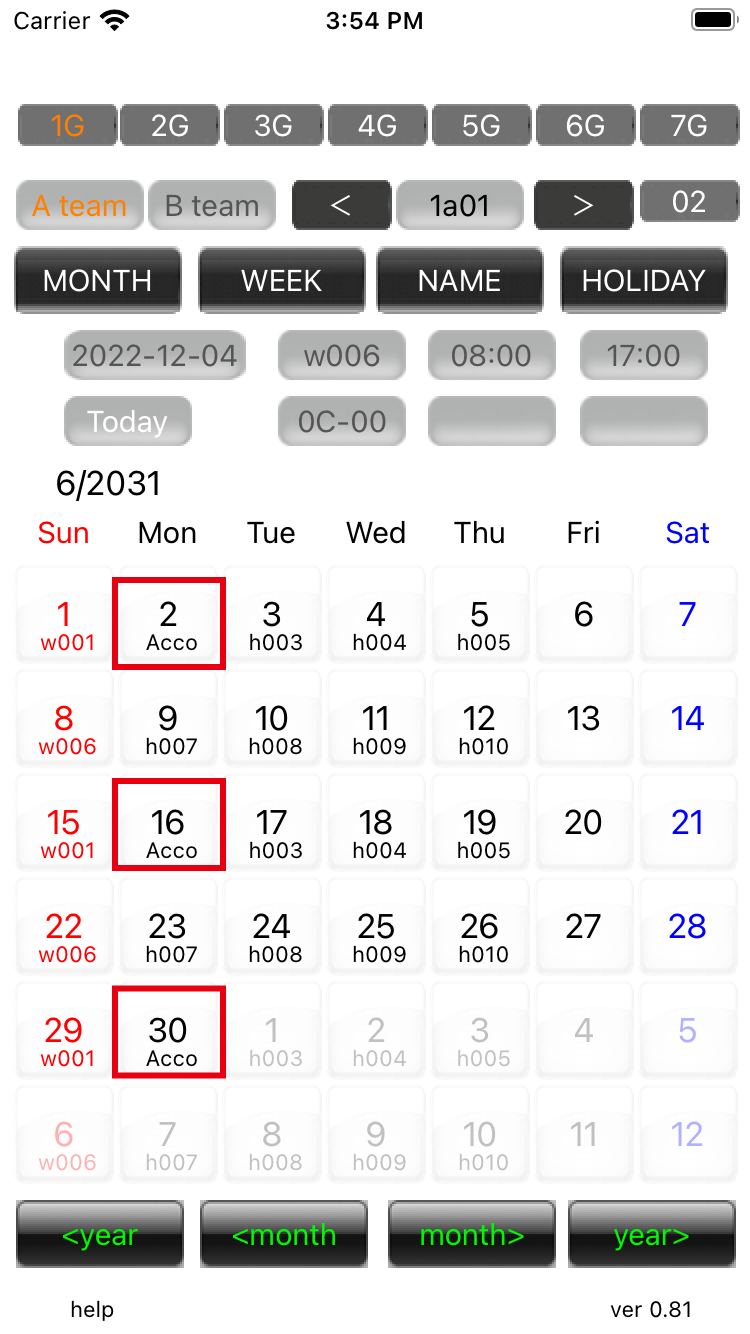
Edit work 08 The business of 'h002' has changed to the modified 'Acco'. Also, if you change the holiday part that was blank in the initial setting file, you can put the task in the blank part of the calendar. If you leave the part that contains the business blank, it will be reflected. |
||
Edit work 09 You can change members by pressing the arrow button. It will be exactly one week apart from member 1a01. If the number of cycles is 1, there is only one member and cannot be changed, but if it is 2, the members can be changed. |
||
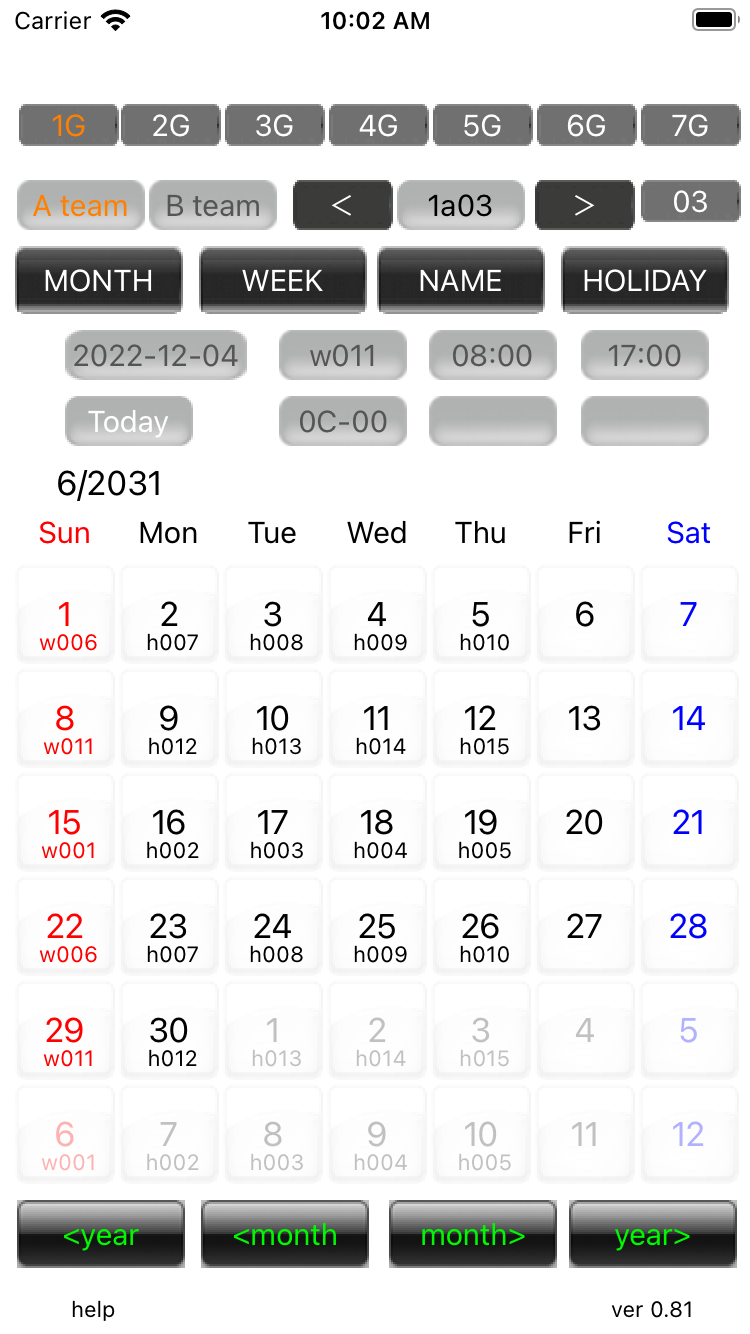
Edit work 10 Set the number of cycles to '3' and make it a member of 1a03. On the 15th, the work of 'w001' will enter. The last person in the group will be assigned the task of 'w001' on the latest day. By default, the B team contains exactly the same content as the A team. By editing separately, it is possible to create work shifts for two teams, and it is also possible to create two types of work shifts for one team. Also, there is area2 which is equivalent to area1. The 'osaka.csv' file will be the business content file for area2. The editing method is the same as 'kyoto.csv'. A total of 4 work shifts can be managed. |
||
| -------------------------------------------------------------------------- | ||
| Previous | Top Page | Next page |
mail to morisita@ic-net.or.jp