
Crew Data 1.00
|
|
| Callender of Business. |
| Previous | Top page | Next page |
| -------------------------------------------------------------------------- | ||
09.Create ICS and CSV files. Outputs the data of the displayed monthly calendar as a file in ICS format or CSV format. Files in ICS format can be imported into the calendar by emailing them as attachments to yourself. |
||
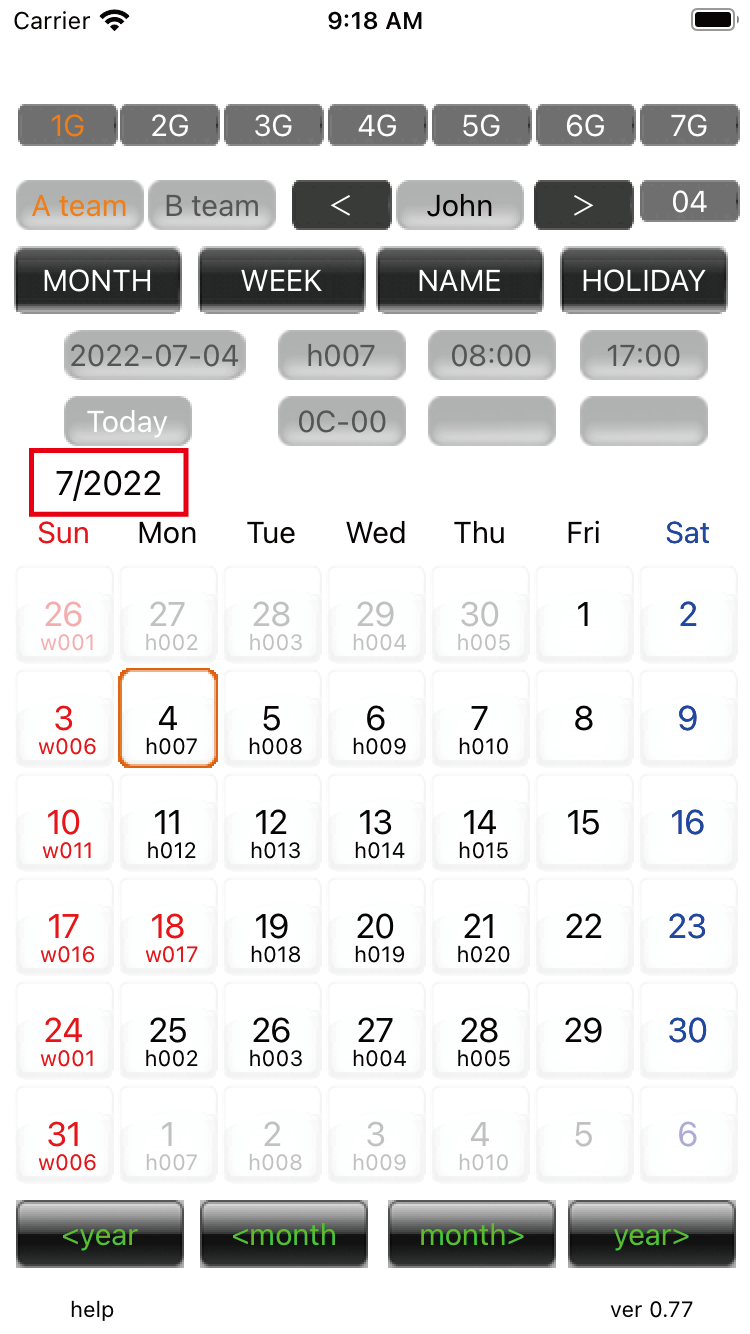
01.Create ICS and CSV files When you select the year/month and member and press the 'year/month' button, the ICS file, CSV file and screen shot will be output to the Documents folder of the CrewDate app. |
||
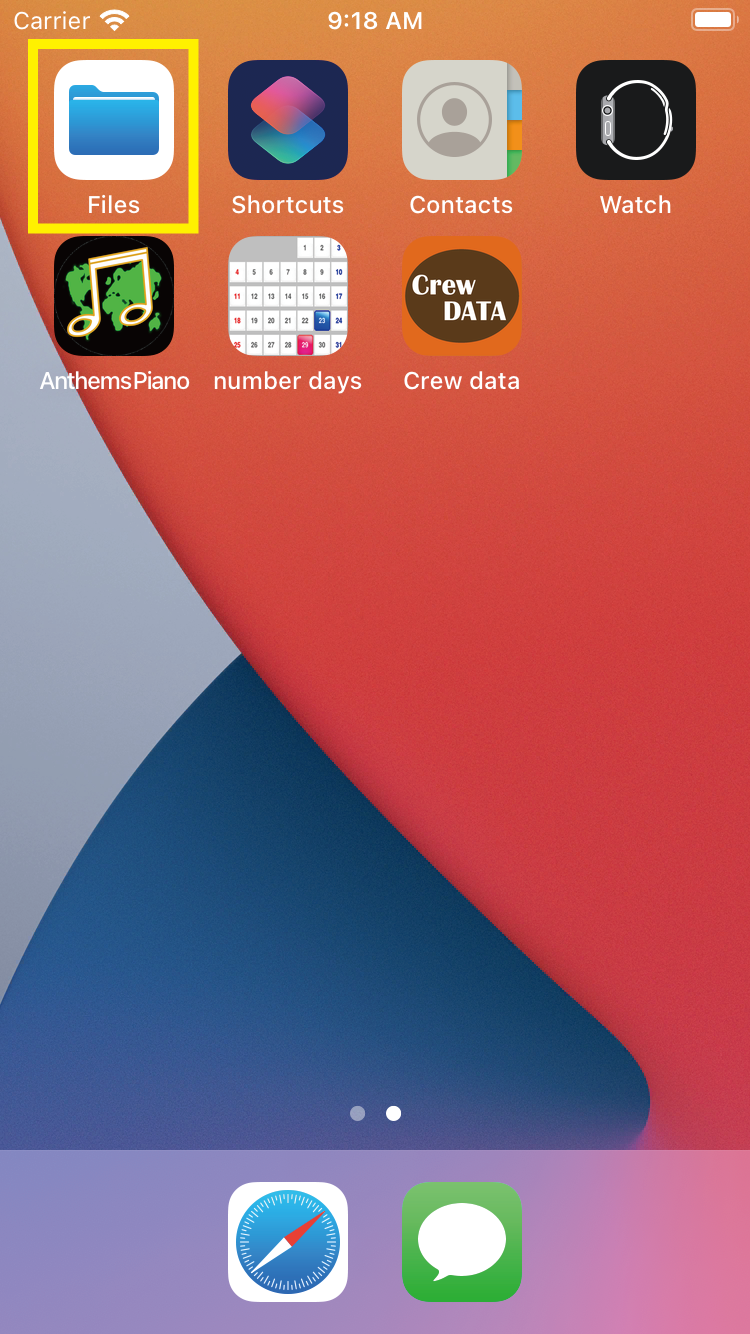
02.Create ICS and CSV files Go back to your iPhone's home screen and open the 'Files' app with the blue icon. |
||
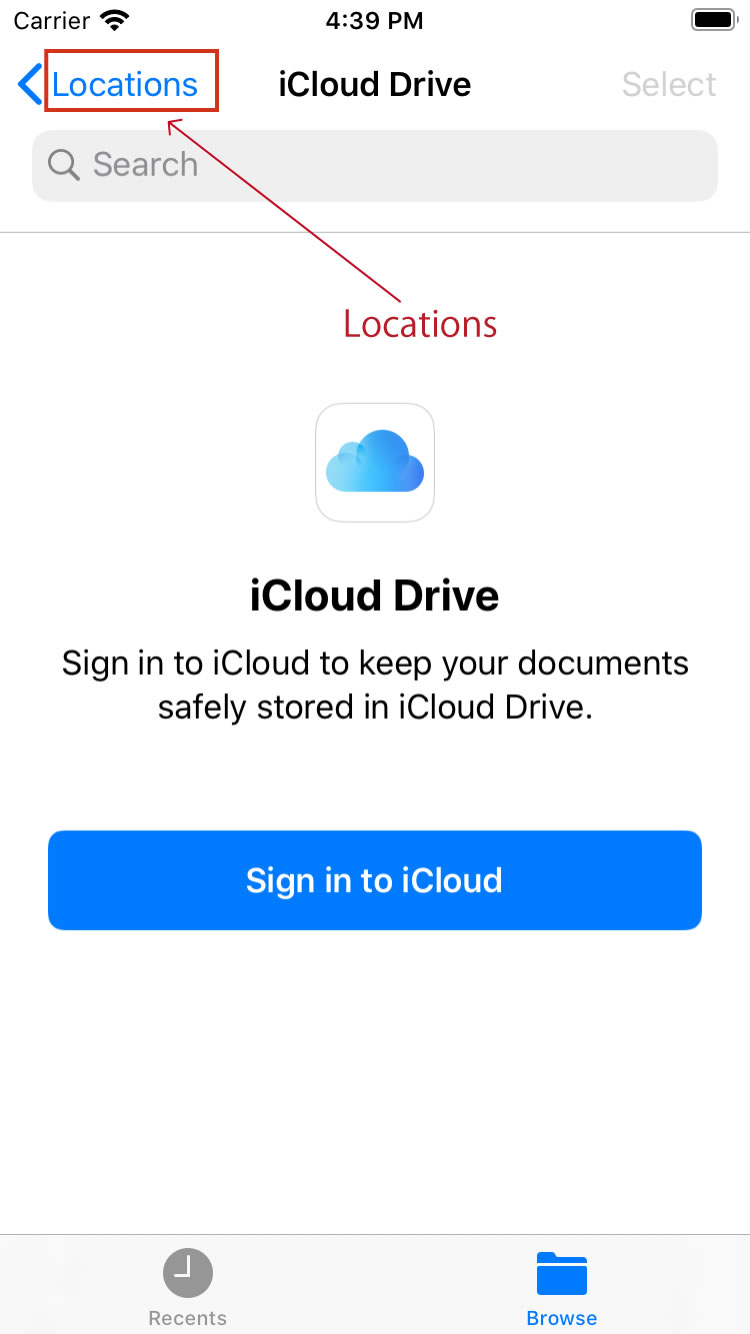
03.Create ICS and CSV files If you are on the iCloud Drive sign-in screen, press 'Locations' to return to the browser screen. If you are using the browser screen from the beginning, please ignore the explanation here. |
||
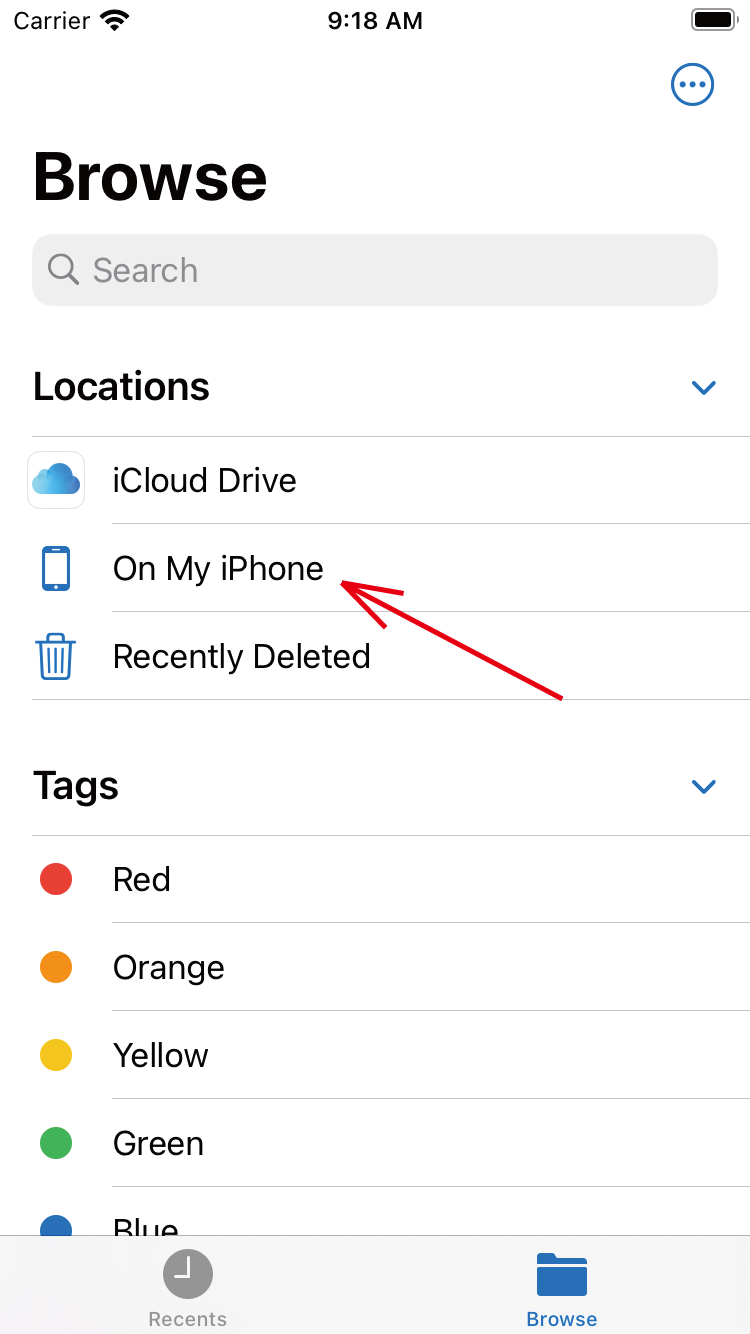
04.Create ICS and CSV files Select the second 'On My iPhone' in 'Locations'.
|
||
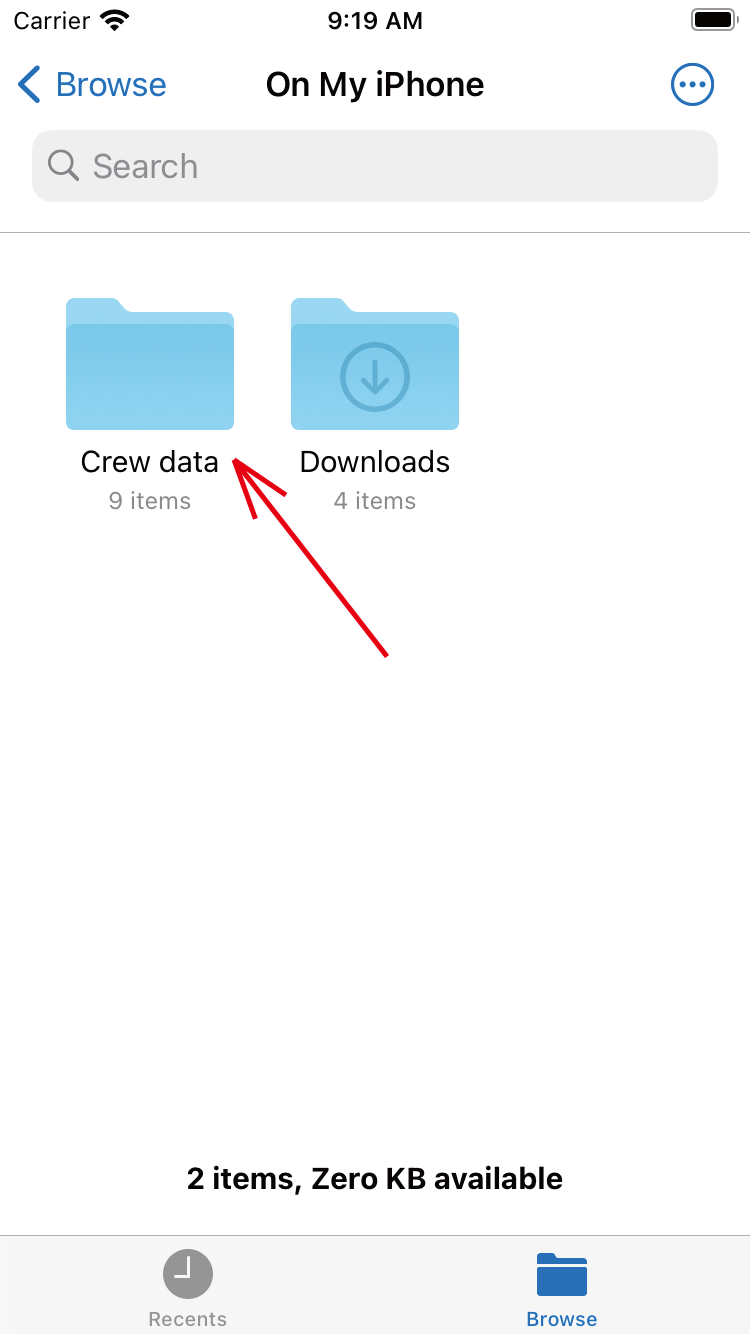
05.Create ICS and CSV files Click on the 'Crew date' folder. If you have multiple apps installed on your iPhone, there are folders for other apps, so scroll the screen or use search to find and click. |
||
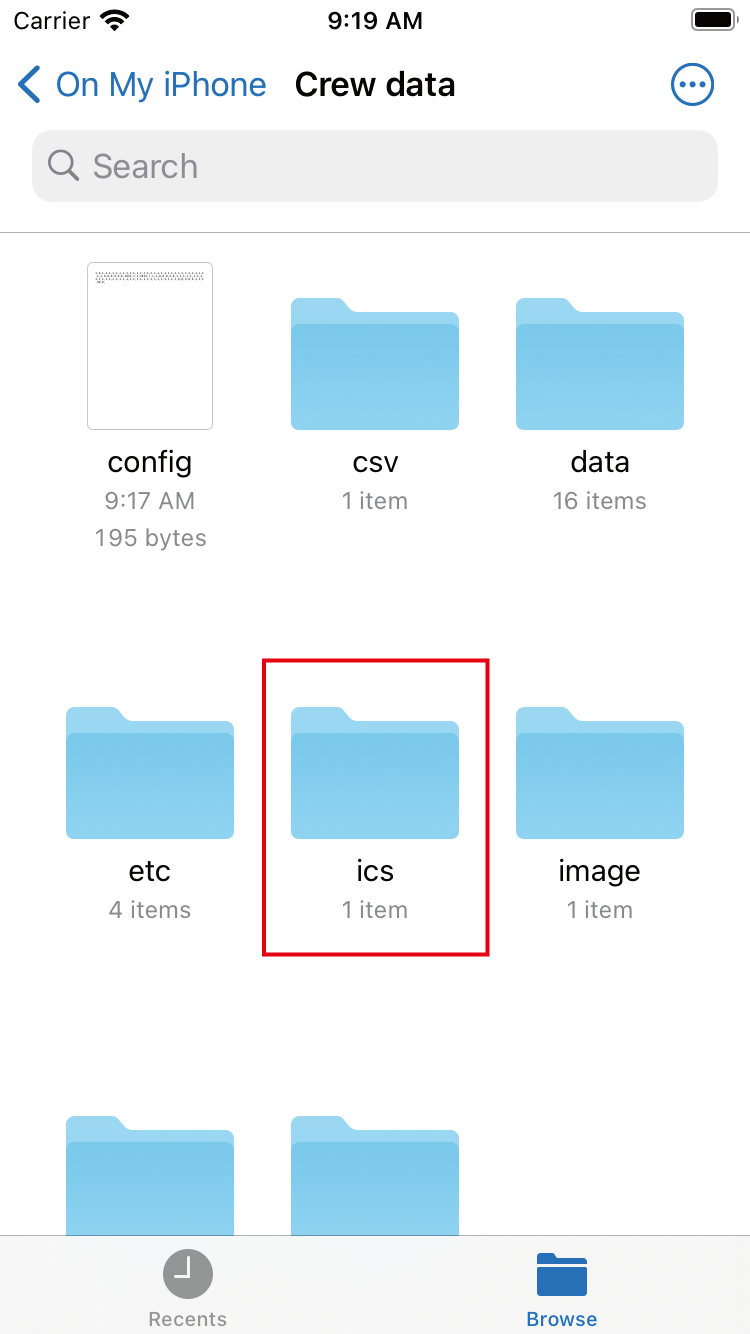
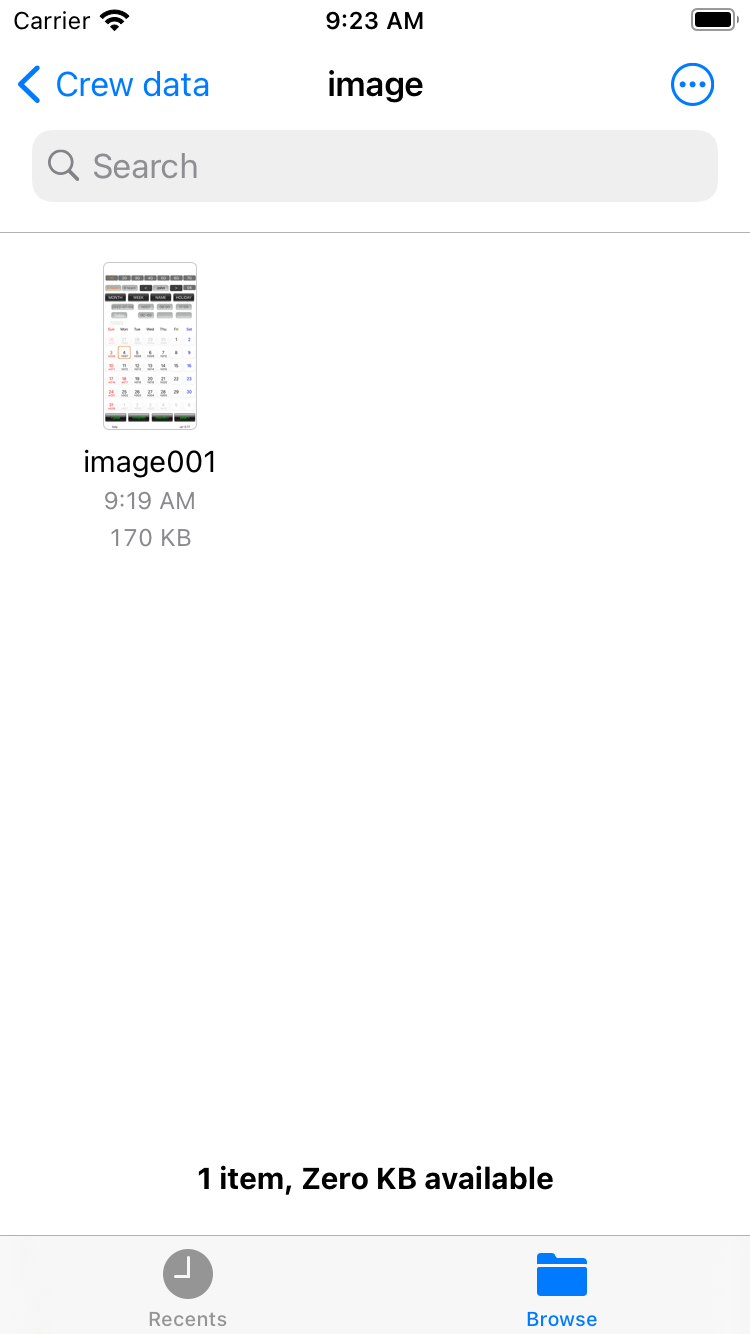
06.Create ICS and CSV files Inside the folder, there are "ics" folder, "csv" folder and "image" folder. Click on the "ics" folder. The "csv" folder contains files in csv format. The "image" folder contains files for screenshots of the app. |
||
|
||
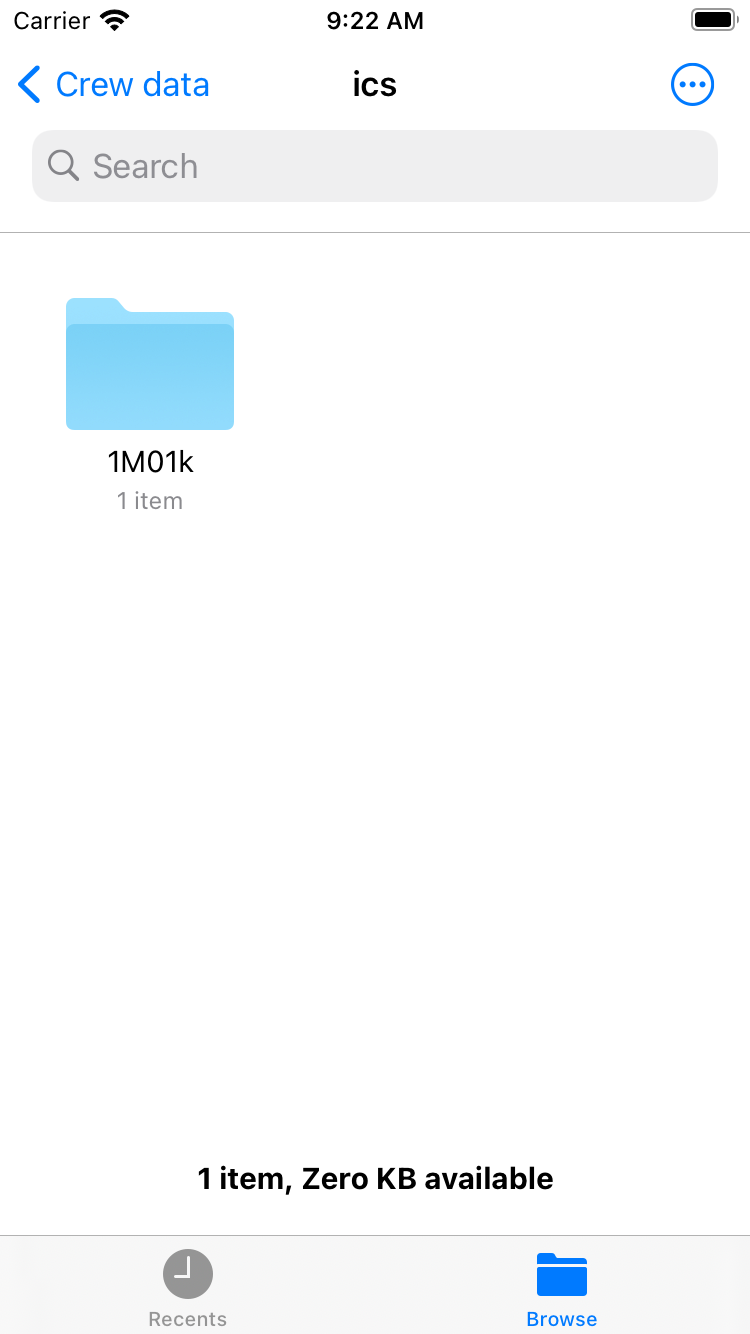
07.Create ICS and CSV files Click on the '1m01k' folder. In this folder name, the first digit is the group, M is 'A team', C is 'B team', 01 is the member number, k is 'area 1', and d is 'area 2'. When you create a file with multiple members, there are as many folders as there are. Please select the folder name. |
||
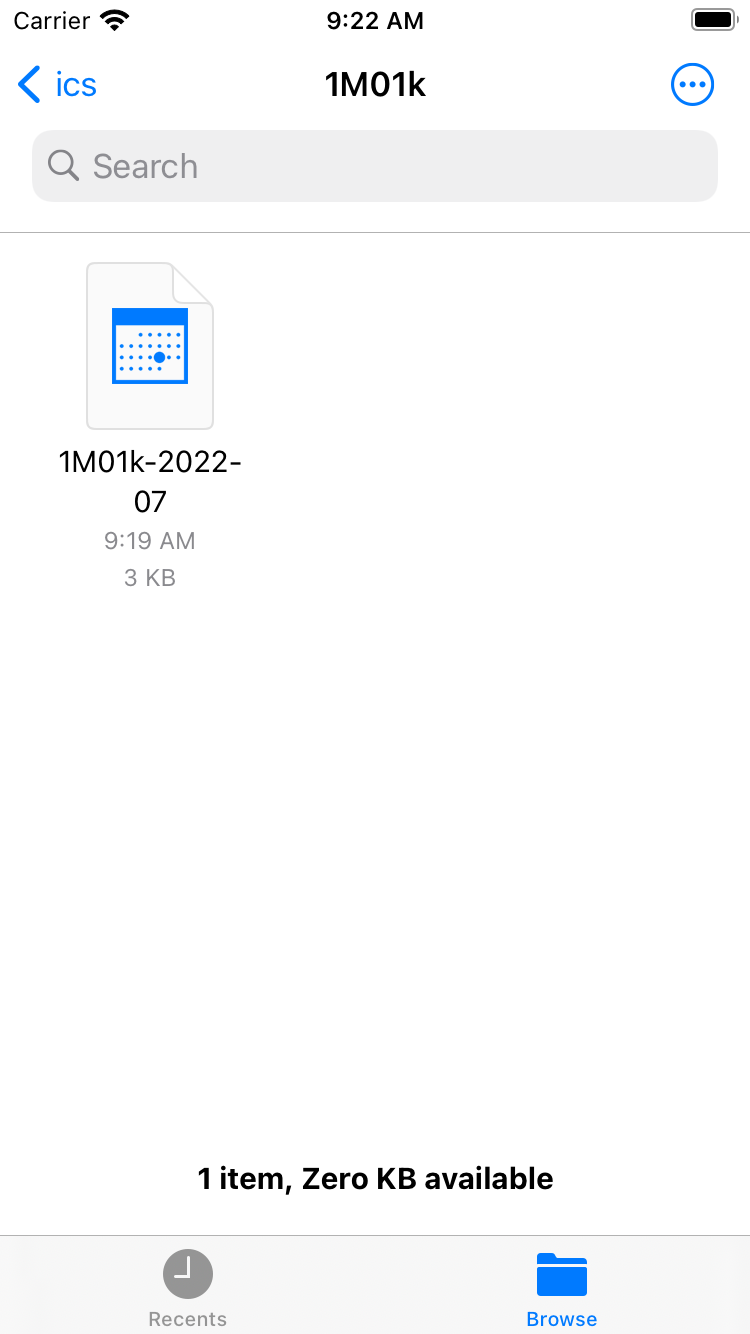
09.Create ICS and CSV files An ics file is a file in a format that can be used with the calendar app for iPhone and Mac. The iPhone calendar app can't import files directly from the iPhone (I don't know why). You can use the file sharing function to send yourself an email (as an attachment), open it, and import it into your iPhone's calendar. Mac calendar software can import each file as a new calendar. This time there is one file, but if there are multiple files, please search for the one you need by file name. File name rule is "1m01k-2022-07.csv" first digit is group, m is 'A team', c is 'B team', next 01 is member number, k is 'area 1', d 'area 2', 2022 is the year and 01 is the month. |
||
10.Create ICS and CSV files Click the ics file to see the image of the simple calendar. In addition, when you receive it as an email attachment, the function to import it into the calendar is displayed in the red frame at the top right of the screen. |
||
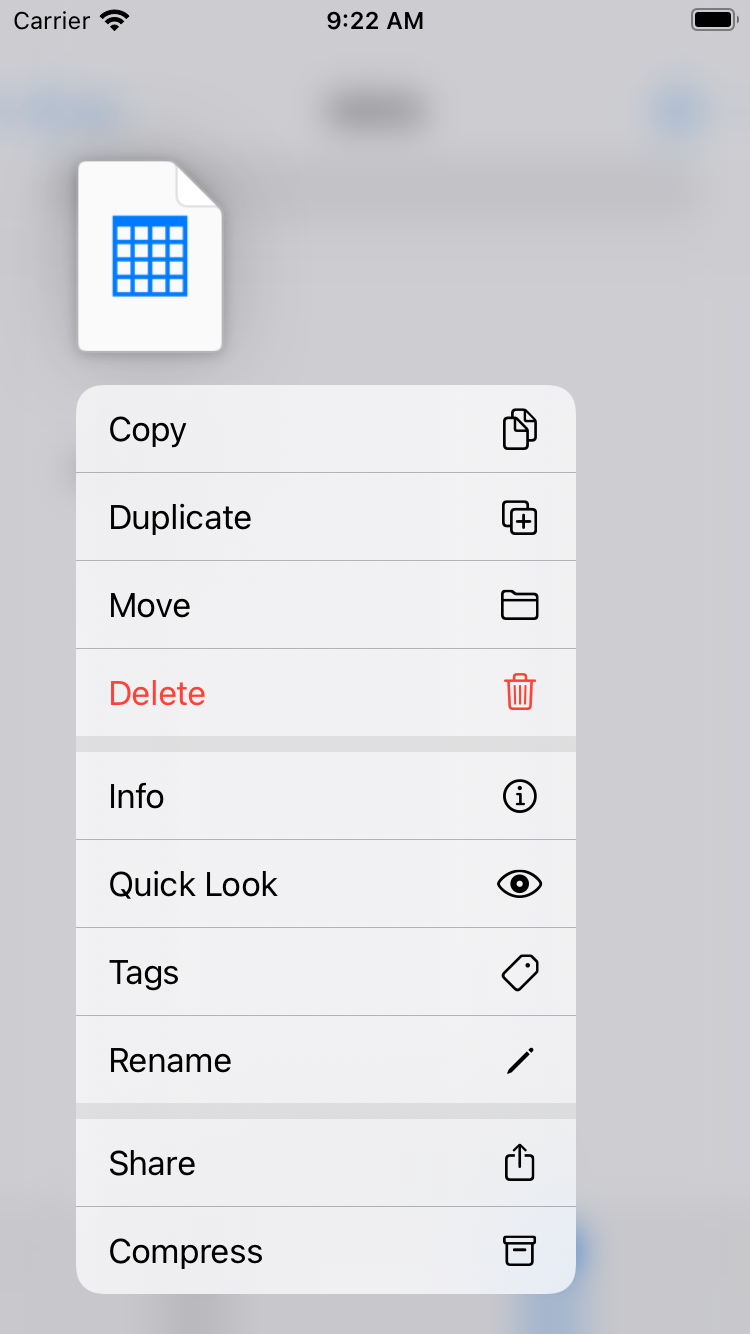
11.Create ICS and CSV files To use this file, you can either transfer it to your PC by email or use it with other apps on your iPhone. The csv file can be opened with an application like Excel called Numbers. It is also possible to import directly to Google Calendar. Press and hold the file to display the above menu, and press Share to perform various operations. |
||
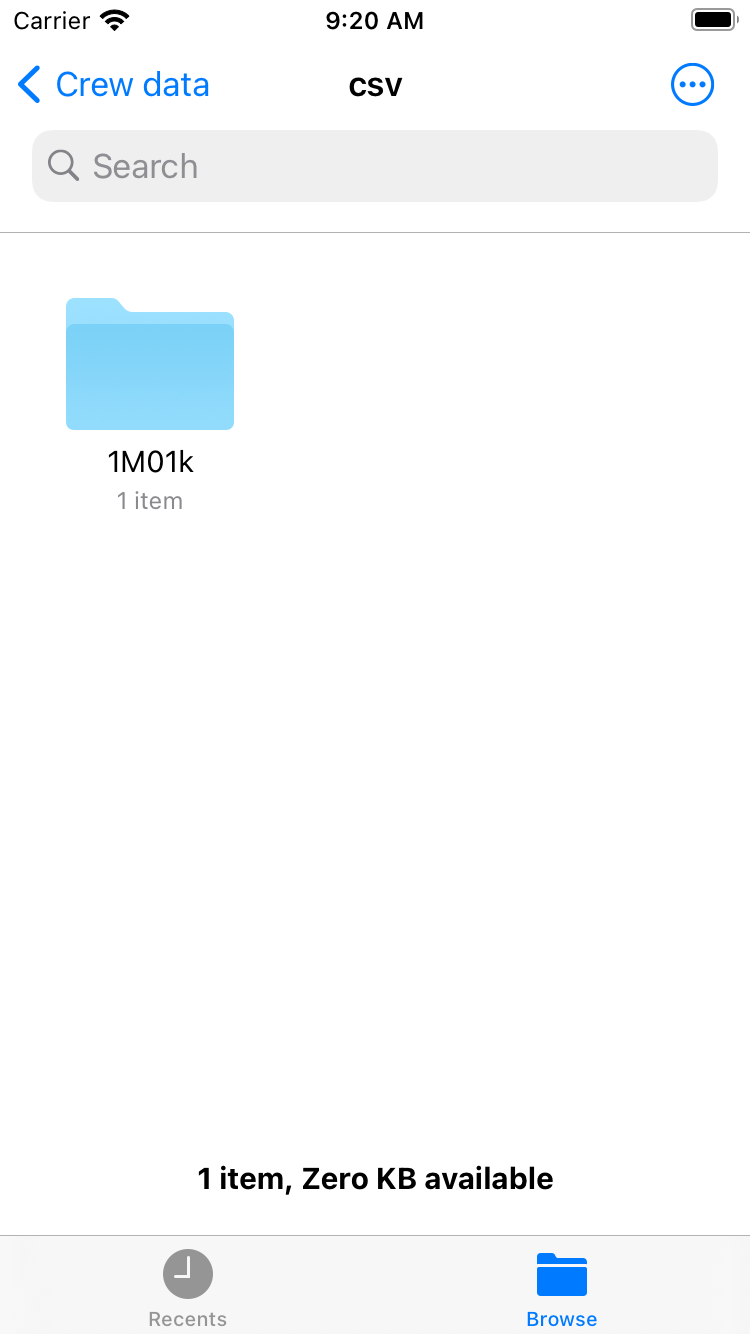
12.Create ICS and CSV files Go back to 'Crew date' with Browse and open the 'csv' folder to find the above folder. There are folders in a format similar to 'ics', each containing a csv file created.
|
||
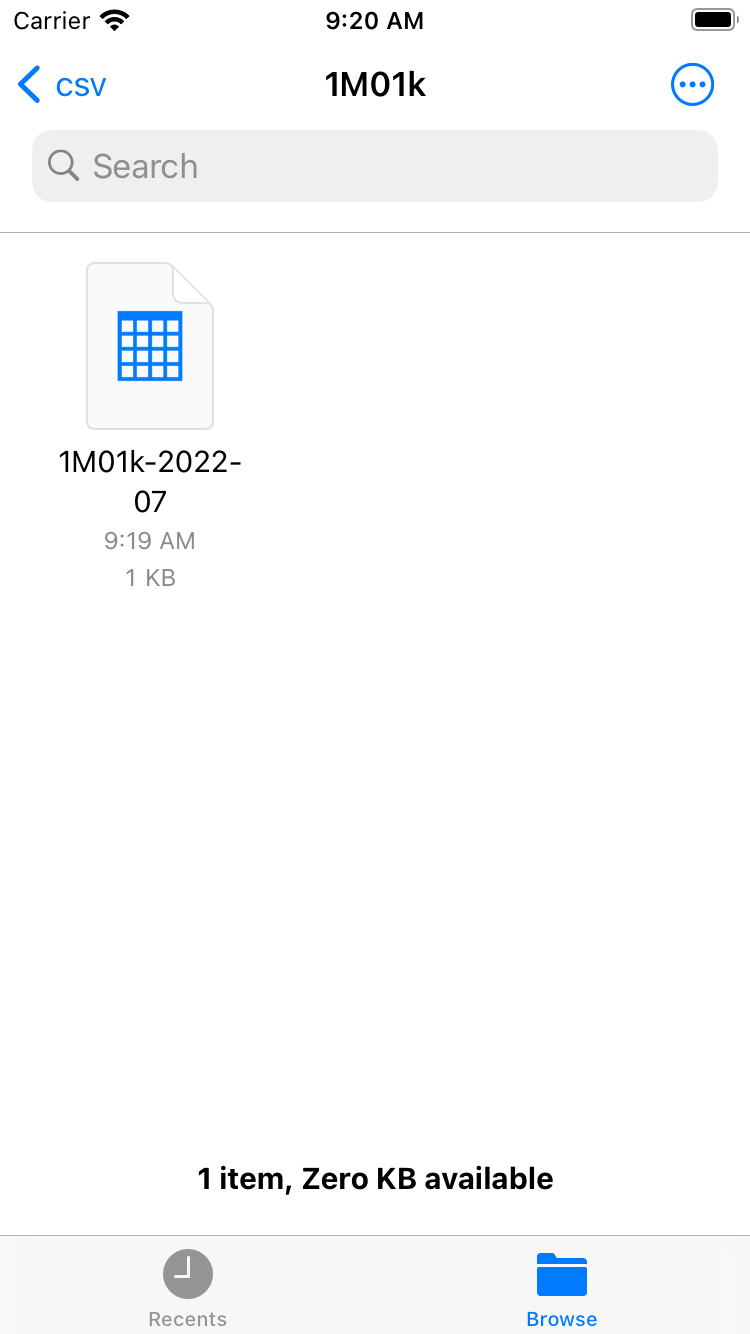
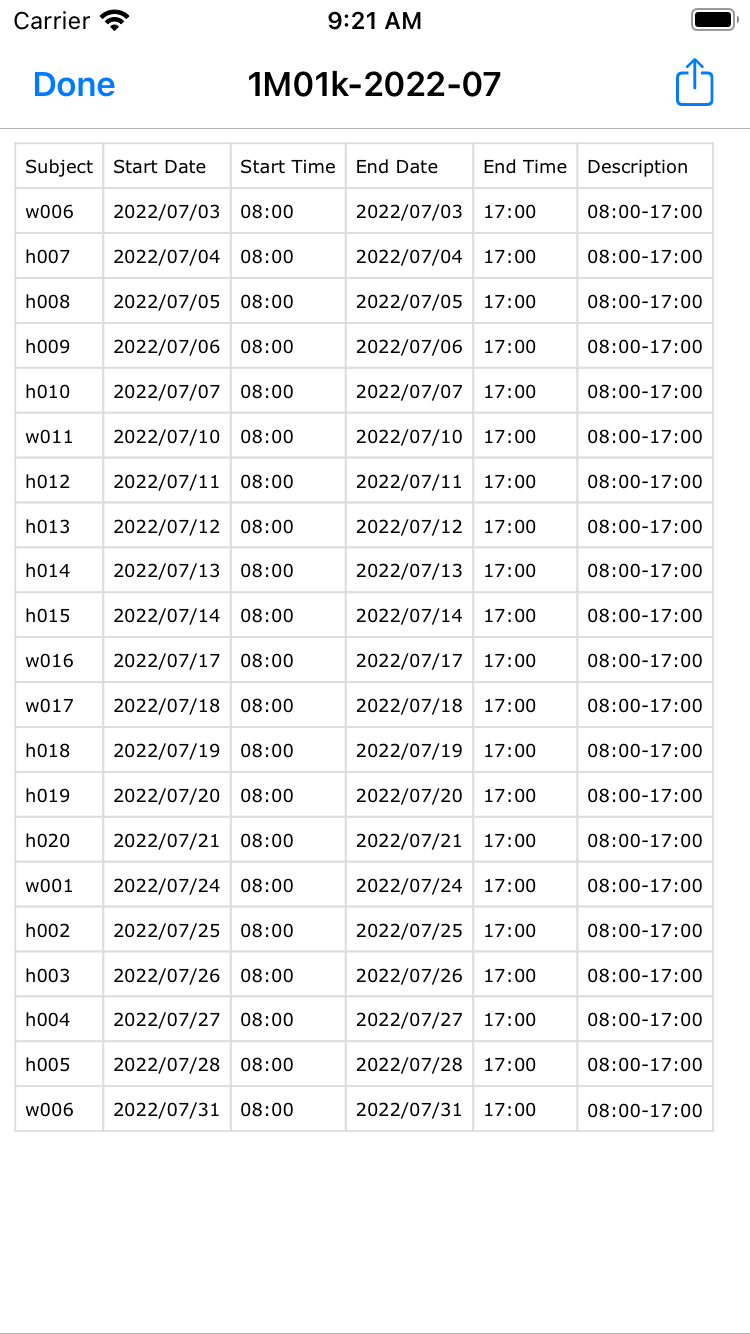
13.Create ICS and CSV files Here is the file in csv format. This time there is one file, but if there are multiple files, please search for the one you need by file name. |
||
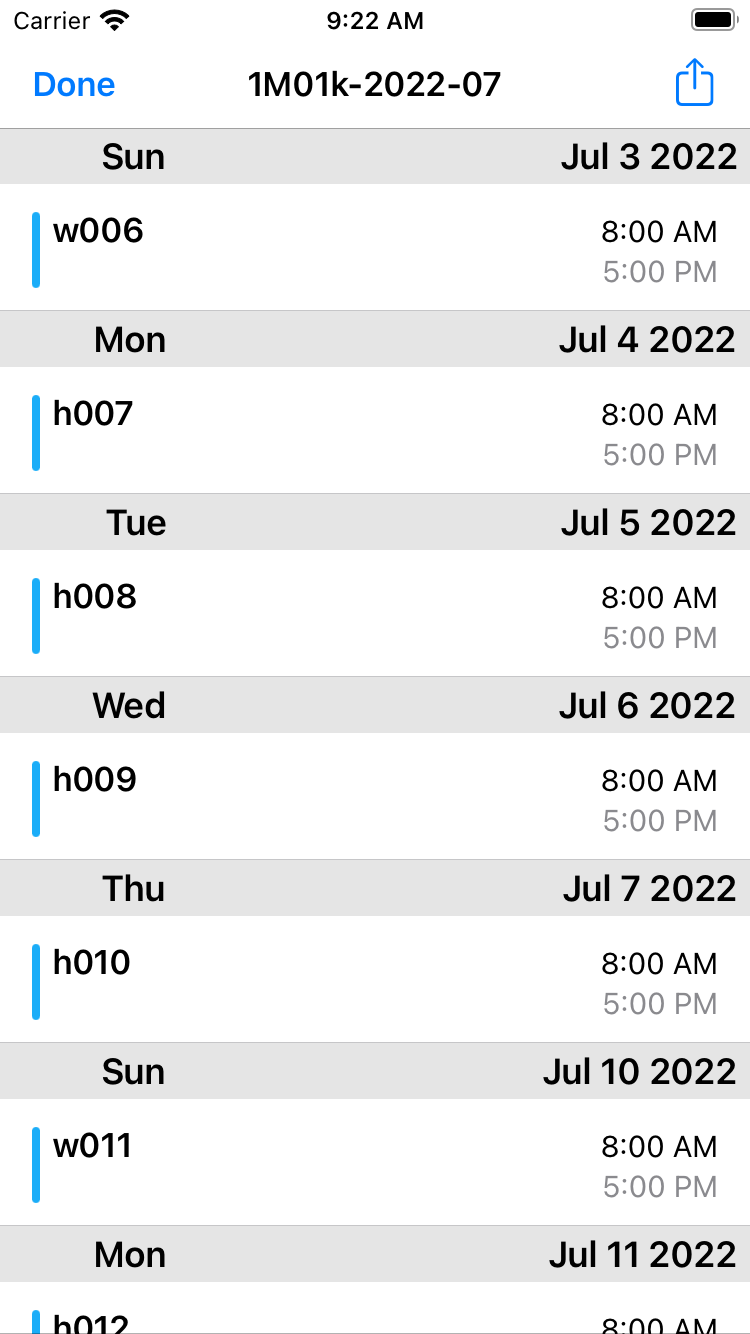
14.Create ICS and CSV files You can easily see the contents of the file by clicking the file. The image above is pinched out (enlarged) for easier viewing. |
||
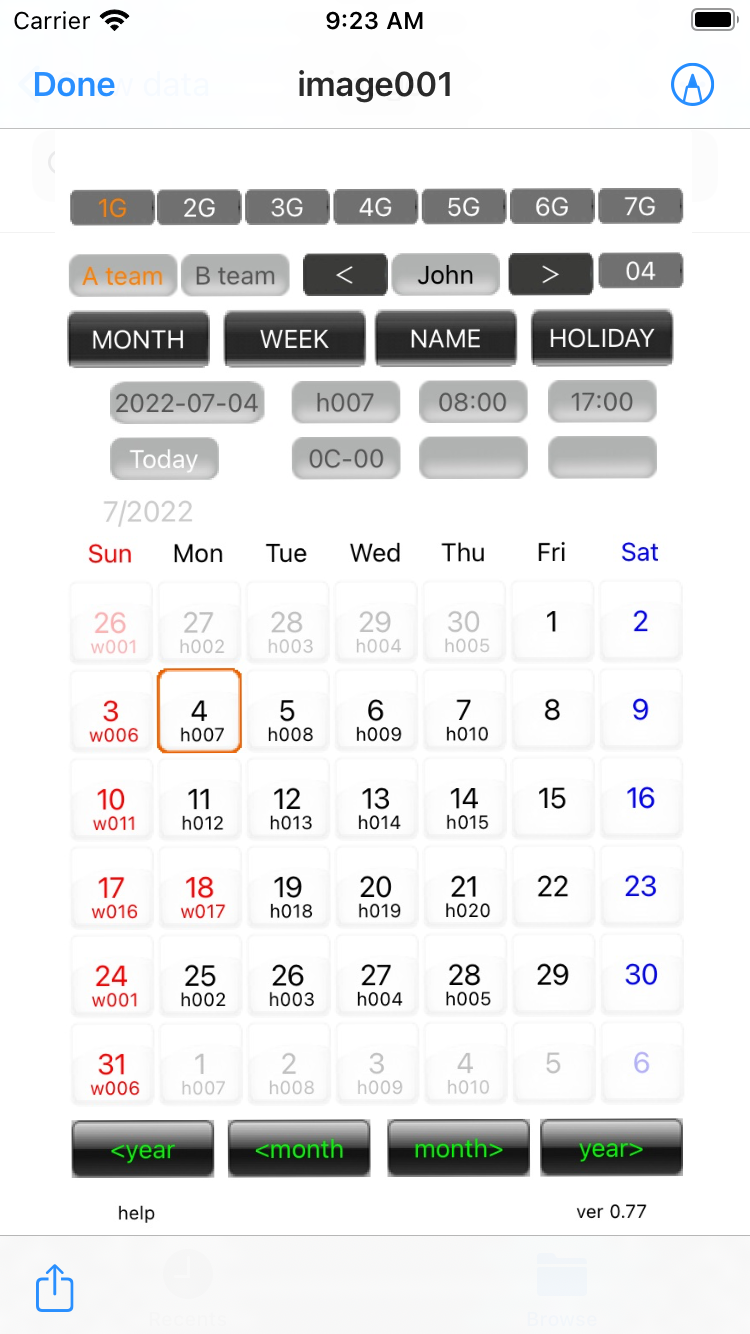
15.Create ICS and CSV files The 'image' folder contains images of screenshots when the year and month buttons are pressed. This file is always overwritten and becomes the latest screenshot. |
||
16.Create ICS and CSV files Pinch out (enlarge) the image. |
||
| -------------------------------------------------- | ||
| Previous | Top page | Next page |
mail to morisita@ic-net.or.jp